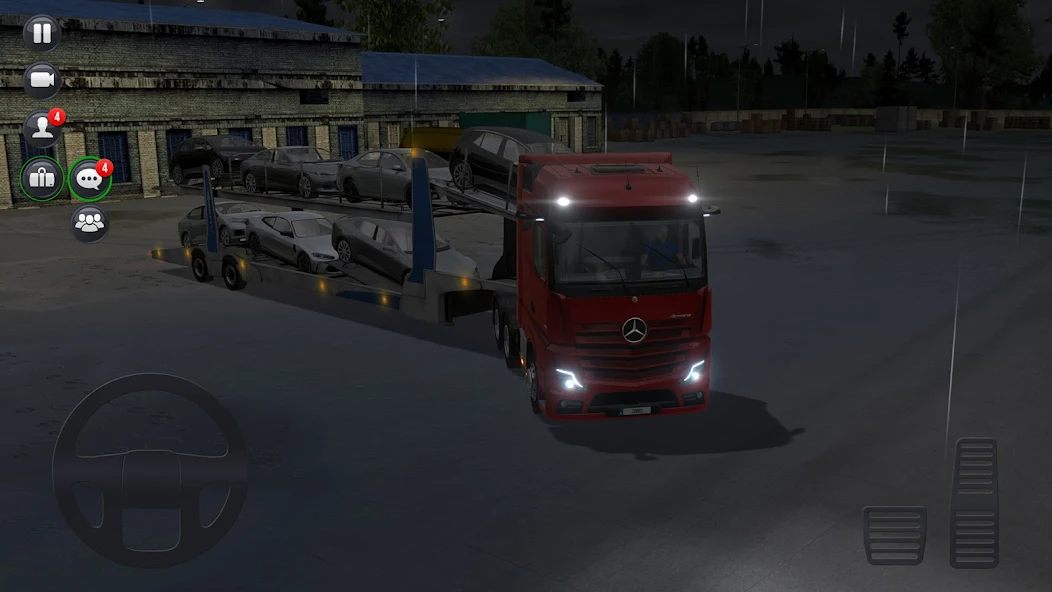
How to Play Truck Simulator Ultimate on PC Using an Emulator
| Name | How to Play Truck Simulator Ultimate on PC Using an Emulator |
|---|---|
| Category | Tips & Tricks |
| Downloads | 159 |
| Price | FREE |
| Rating |
★
★
★
★
★
0/5
(0)
|
| Author | |
| Updated |
Want to drive Truck Simulator Ultimate on a big screen with a keyboard and mouse? All you need is an Android emulator that fits your device, no separate PC version required.
Playing Truck Simulator Ultimate on PC through an emulator essentially means running the mobile version of the game on Android emulation software like BlueStacks, LDPlayer, MEmu, or NoxPlayer. The game is published by Zuuks Games, currently at version 1.4.1 (updated January 28, 2026), with an install size of around 1.8 GB, so your emulator needs decent free storage and RAM. We’ll walk through every step concisely, along with how to pick the right emulator for your device specs and how to bind driving keys so you don’t get your fingers tangled up.
- Why should you play Truck Simulator Ultimate on PC?
- What is Truck Simulator Ultimate?
- Which emulator do you need to play Truck Simulator Ultimate on PC?
- How to download and install Truck Simulator Ultimate on PC using an emulator
- What minimum PC specs give you a smooth experience?
- How to bind WASD driving keys so you don’t get your fingers tangled
- Can a weak PC still play Truck Simulator Ultimate on an emulator?
- Conclusion
Why should you play Truck Simulator Ultimate on PC?
Playing on PC through an emulator gives you a large screen, a stable frame rate, and WASD controls that are far more precise than touch. You’ll also avoid overheating and draining your phone’s battery, and it’s easier to open multiple windows for parallel grinding. For a graphically demanding driving game like this, the difference is genuinely noticeable.
Truck Simulator Ultimate is an open world game with seasonal multiplayer, delivering cargo across over 100 cities. Driving with touch controls on a phone gets tiring over time and lacks precision on sharp turns or when reversing into a loading dock. On PC, both driving and managing your transport company become noticeably faster and more comfortable.
What is Truck Simulator Ultimate?
This is a truck driving simulation game combined with business management from Zuuks Games, launched in September 2021 and still regularly updated to this day. You establish a transport company, buy trucks, hire drivers, and take on delivery jobs across countries like the US, Germany, China, Russia, Japan, and Korea to build your own logistics empire.
What makes the game so appealing is its licensed vehicle lineup from Mercedes-Benz, Scania, DAF, and Michelin tires, with over 42 truck models and detailed cockpit recreations. On top of that, there’s dynamic weather, toll roads, over 250 radio stations, and cargo delivery auctions to earn higher profits. If you’ve ever loved Euro Truck Simulator, the playstyle here will feel very familiar.
If you’re interested in the standard download, gameplay tips, and modified versions, you can check out our compiled article on Truck Simulator Ultimate Mod Apk to get the full picture before installing.
Which emulator do you need to play Truck Simulator Ultimate on PC?
The four names most worth considering are BlueStacks, LDPlayer, MEmu, and NoxPlayer, all of which can run this game. If your device is fairly powerful, we’d lean toward BlueStacks 5 since it’s well optimized for graphically heavy games. For mid range or weaker devices, LDPlayer tends to run a bit lighter and smoother.
Our reasoning here is pretty simple. BlueStacks comes with tools like Trim Memory, Macro, and Multi-Instance, suited for anyone who wants to grind long sessions or run multiple accounts, though it eats up more RAM in exchange. LDPlayer and MEmu are lighter on hardware, boot up faster, and suit mid range specs well. NoxPlayer is a solid choice if you’re already familiar with its interface.
An important safety note: only download emulators from each company’s official homepage, and download the game from the Google Play Store inside the emulator. Modified emulator builds or APK files floating around random websites often come bundled with malware, ranging from junk ads at best to losing your Google account at worst. Don’t skimp on the few minutes it takes to download from the right source.
How to download and install Truck Simulator Ultimate on PC using an emulator
We’ll use BlueStacks as an example since it’s the most popular, and other emulators work in a similar way. Follow these steps in order:
- Go to the BlueStacks homepage, download the installer, and install it like any regular software on Windows or macOS
- Open BlueStacks and sign in with your Google account to access the Google Play Store
- Go to the Play Store and type “Truck Simulator Ultimate” into the search bar
- Select the correct game from Zuuks Games in the results and tap Install, then wait for the roughly 1.8 GB download
- Once installed, tap Open, select your region and city, name your company, and start receiving your first delivery job
Since the game file is fairly large, leave at least 4 to 5 GB of free disk space so the game can install and write cache comfortably, avoiding a failed download midway. If your connection is weak, the download step will be the most time consuming part.
What minimum PC specs give you a smooth experience?
The game itself requires Android 7.0 and up with a minimum of 2GB RAM on a phone, according to Zuuks Games. But when running through an emulator, your computer also has to carry the weight of a virtual operating system, so the specs required are noticeably higher. A comfortable baseline would be a recent generation Intel or AMD chip, 8GB of RAM, with virtualization enabled in BIOS.
The 8GB RAM figure above is our reference for a smooth experience, not a strict hard requirement. BlueStacks lists the minimum OS requirement as Windows 7 or higher, or macOS 11 (Big Sur) or higher, but for a graphically demanding game like Truck Simulator Ultimate to run stably, RAM and enabling virtualization (VT-x/AMD-V) are what really determine how much stuttering you’ll experience. A dedicated graphics card isn’t required, but having one does make for a smoother frame rate.
How to bind WASD driving keys so you don’t get your fingers tangled
This is exactly where a lot of people run into trouble right after installing. The emulator comes with a built in key binding tool, open the keyboard control panel (usually the keyboard icon on the right side toolbar) and drag the in game control buttons to the correct spots. For basic driving, use W for throttle, S for brake or reverse, and A and D to steer left and right.
Our tip is to also bind separate keys for the handbrake, turn signals, and camera view, since Truck Simulator Ultimate has plenty of secondary actions that get confusing if left combined, especially while turning or reversing into a delivery yard. Once you’ve finished binding, remember to save. The game also requires completing a few initial deliveries to unlock the multiplayer server, so run through your first few jobs smoothly before thinking about competing against other players.
Can a weak PC still play Truck Simulator Ultimate on an emulator?
Yes, you can still play, but you’ll need to compromise on graphics. On a weaker device, lower the emulator’s resolution to a moderate setting, reduce the frame rate in the emulator’s settings, close background apps, and lower the in game graphics quality. Avoid opening multiple emulator windows at once if you have under 8GB of RAM.
This game is noticeably heavier than most typical mobile titles, so on weak hardware, some mild stuttering in busy traffic areas or large cities is hard to avoid entirely. That said, if you’re willing to accept low graphics settings and a moderate resolution, the driving itself still plays fine. Allocating more CPU cores and RAM to the emulator in the performance settings also helps improve things noticeably.
View Truck Simulator Ultimate Details
Conclusion
To play Truck Simulator Ultimate on PC, you just need to pick the right emulator for your device specs, download version 1.4.1 from Google Play, then bind WASD keys for a comfortable setup. For powerful machines, prioritize BlueStacks 5, while mid range machines should go with LDPlayer for a lighter load. Remember to download the emulator from its official site to avoid malware and account loss. Once installed, run through a few early deliveries to get comfortable before jumping into multiplayer.
If you’d like to discover more games and apps, check out our homepage for the full content library.
Back to MODLMH Homepage
Android emulator to run HOW TO PLAY TRUCK SIMULATOR ULTIMATE ON PC USING AN EMULATOR APK smoothly on PC.
Choose the source that fits your device
Play on PC with LDPlayer Android emulator · supports How to Play Truck Simulator Ultimate on PC Using an Emulator · Windows GET ↗