How to Play War Robots on PC Using an Emulator (Step-by-Step Guide)
| Name | How to Play War Robots on PC Using an Emulator (Step-by-Step Guide) |
|---|---|
| Category | Tips & Tricks |
| Downloads | 154 |
| Price | FREE |
| Rating |
★
★
★
★
★
0/5
(0)
|
| Author | |
| Updated |
War Robots does have an official PC version, but if you’ve already put in the grind on your phone account, playing through an emulator is actually the safest route to keep your progress intact.
Learning how to play War Robots on PC using an emulator is something a lot of players look into when they want to control those massive robots with a mouse and keyboard instead of dragging their thumb across a tiny screen. It’s free, easy to set up, and takes about fifteen minutes. There’s one account-related detail almost no guide spells out clearly, and skipping it could mean losing a month’s worth of progress entirely. This article walks you through everything, from installation all the way to watching robots duke it out on a big screen, while also pointing out exactly when an emulator makes sense and when you’re better off skipping it for the official PC version.
- What Is War Robots, and Why Would You Want to Play It on PC?
- Check out and download War Robots Multiplayer Battles
- How to Play War Robots on PC Using an Emulator, Step by Step
- Which Emulator Should You Choose for War Robots?
- Installation Steps
- What’s the Minimum PC Specs to Play War Robots on an Emulator?
- Does Playing on an Emulator Sync With Your Phone Account?
- Should You Use an Emulator or Review the Official War Robots PC Version?
- Tips for Playing War Robots on PC With Mouse and Keyboard
- Conclusion
- Back to MODLMH homepage
What Is War Robots, and Why Would You Want to Play It on PC?
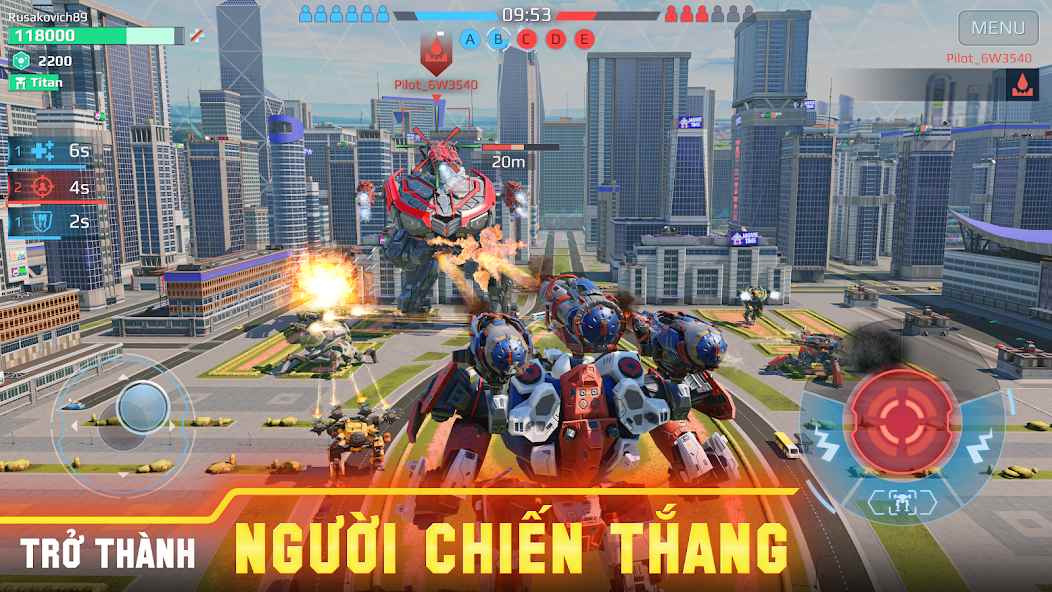
War Robots (listed on stores under its full name, War Robots Multiplayer Battles) is a third-person shooter with 6v6 PvP battles, developed by MY.GAMES and Pixonic. You control heavily armed mechs, capturing beacons and taking down opponents in short matches lasting just a few minutes. The robot roster has already grown past 50 units, plus countless weapon combinations, so most of a player’s time goes into theorycrafting builds and climbing the League rank.
As of late June 2026, the game has been updated to version 12.2.1, running on Android 7.0 and above, with an install size ranging from around 170MB to over 800MB depending on the file type. The game gets patched almost monthly, so this version number will change soon, just let your emulator auto-update. Because gameplay revolves so heavily around builds and high-detail visuals, playing on PC with a mouse for aiming feels noticeably more precise than a virtual joystick, which is exactly why the “moving to PC” question keeps coming up.
Check out and download War Robots Multiplayer Battles
How to Play War Robots on PC Using an Emulator, Step by Step
An Android emulator is software that creates a virtual phone right inside Windows or macOS, letting you install and play mobile games with a mouse, keyboard, or controller. Since the emulator runs an actual Android build under the hood, your account remains a mobile account, this is exactly the key point I’ll dig into more later.
Which Emulator Should You Choose for War Robots?
There are four names worth considering. BlueStacks is the most popular choice, with a dedicated setup page just for War Robots, so compatibility is very solid. LDPlayer is lighter and advertised to support higher frame rates on capable machines. NoxPlayer excels at multitasking, letting you open multiple windows to run several accounts at once. GameLoop can also run it, but it’s mainly optimized for other games. For most people, I’d recommend starting with BlueStacks or LDPlayer to keep things simple.
Installation Steps
- Go directly to the emulator’s official website (for example bluestacks.com or ldplayer.net) to download the installer. Avoid random unofficial links, as they’re prone to bundling junk software.
- Install and open the emulator, then sign in with your Google account to access the Play Store inside it.
- Search “War Robots” in the emulator’s Play Store and hit install, exactly the same as on your phone. If the store is blocked in your region, you can download the official APK from warrobots.com and drag it into the emulator.
- Open the game and let the emulator apply its default keymapping, then adjust it to fit your preference.
- Go into the account settings inside the game to link your progress, this step determines whether you lose your account or not, so don’t skip it.
A blunt word on safety: War Robots is an online PvP game, and any mod or hack for this kind of online title carries a very high risk of getting your account banned, since the server checks your data. If you absolutely need to install an APK outside the Play Store, always prioritize the official file from the game’s homepage, never install a random file just because it promises “unlimited” something.
What’s the Minimum PC Specs to Play War Robots on an Emulator?
You’ll need Windows 7 or later (or macOS 11 Big Sur or later), a minimum of 4GB RAM per BlueStacks’ requirements, admin privileges, and Virtualization enabled in BIOS. But for War Robots to run genuinely smoothly, I’d recommend at least 8GB RAM, an SSD, and a dedicated graphics card.
Lower-spec machines can still run it, you’ll just want to lower the resolution and graphics settings inside the emulator’s settings, while allocating more RAM and CPU cores to it. Enabling Virtualization in BIOS is the step most people forget, and without it, the emulator will lag even on a powerful machine.
Does Playing on an Emulator Sync With Your Phone Account?
Yes, and this is exactly why emulators are far more convenient than most people assume. Since the emulator runs an actual Android build, your account stays a genuine mobile account. Just link it once with your MY.GAMES ID inside the game, and you can freely switch between phone and PC, keeping your robots, pilots, League rank, and clan contributions fully intact.
MY.GAMES confirms crossplay works across two groups. The fully synced group includes every Android device (including the official APK), iOS, and the MY.GAMES Launcher, letting you switch back and forth as many times as you like. Steam, on the other hand, only syncs one way: an account created on Steam can be carried over to other platforms, but your mobile account cannot be pulled back into Steam. In other words, if you’ve already been grinding on your phone, an emulator keeps that exact same account, while creating a new one on Steam essentially means starting over from scratch.
One more note: an account can’t be logged in at two places simultaneously. If you open the game on PC, your phone will show an error saying it’s running elsewhere, just close one side and you’re good.
Should You Use an Emulator or Review the Official War Robots PC Version?
War Robots does have an official native PC version that runs directly without an emulator, available through two channels: Steam and the MY.GAMES Launcher. So to be fair about it, an emulator isn’t the only way, and depending on your situation, it might not even be the best one.
If you already have a phone account and want the cleanest PC experience, the MY.GAMES Launcher is the option I’d rate the highest. It’s a native build, fully syncs both ways with mobile via your MY.GAMES ID, and doesn’t eat up resources the way running an entire virtual OS does. Steam is also native, but it comes with the one-way trap mentioned earlier, so anyone currently grinding on their phone should absolutely avoid creating a new Steam account expecting it to merge later.
So when should you go with an emulator? When you value flexibility: running multiple accounts in parallel to grind, playing while multitasking with other apps, or simply wanting to use your exact mobile account without installing an extra launcher. In exchange, an emulator eats up more RAM than a native build. To keep it simple: if you already have a phone account, go with the MY.GAMES Launcher or an emulator, and avoid Steam if you don’t want to lose your progress.
Tips for Playing War Robots on PC With Mouse and Keyboard
The biggest advantage of moving to PC is aiming with a mouse, far smoother and more precise than a virtual joystick, especially for long-range sniper robots. The typical control scheme uses WASD for movement, the mouse to rotate and aim, and number keys to trigger robot abilities and weapon skills. Head into the emulator’s keymapping settings to adjust key positions to fit your fingers comfortably, and it plays incredibly well from there.
If you’re the type who loves grinding resources, you can take advantage of NoxPlayer’s or BlueStacks’ multitasking to open several windows and run multiple accounts at once. Just be mindful of your RAM, opening too many windows on a weaker machine will cause immediate lag.
Conclusion
Playing War Robots on PC using an emulator isn’t hard, the tricky part is choosing the right path so you don’t lose your account. If you already have a phone account, install BlueStacks or LDPlayer, log in with that same account, and link your MY.GAMES ID, or switch entirely to the MY.GAMES Launcher for a lighter setup. Just avoid creating a new account on Steam, and you’ll get a smooth PC experience while keeping every bit of progress you’ve already earned.
Want to explore more games and apps on our platform? Head over to our homepage.
Back to MODLMH homepage
Android emulator to run HOW TO PLAY WAR ROBOTS ON PC USING AN EMULATOR (STEP-BY-STEP GUIDE) APK smoothly on PC.
Choose the source that fits your device
Play on PC with LDPlayer Android emulator · supports How to Play War Robots on PC Using an Emulator (Step-by-Step Guide) · Windows GET ↗